Existing customers click OK below to open up your e-mail client to submit a support request. Note: if you are not an existing customer, your support request will be ignored. If you wish to become a customer, please click on the "Contact Us"
Existing Customer
New Customer
Our Insights
Discovery I.T. is your trusted Information Technology & Information Systems Support company in Nederland, Beaumont, Port Arthur, Orange and all of East Texas.
The “You Will” Prophecies: How AT&T’s 1993 Ads Saw the Future In 1993, the internet was a novelty mostly relegated to academic and military institutions. Dial-up connections hummed with erratic screeches, and cell phones, if you had one, resembled actual bricks. Yet, in the midst of this early technological landscape, AT&T launched an advertising campaign […]
Microsoft Copilot 2026: Licensing Changes and New Capabilities Explained Microsoft has streamlined the deployment and functionality of Copilot across the Microsoft 365 ecosystem. These updates are designed to enhance usability, deliver more robust capabilities, and ensure a consistent AI experience within core productivity applications. Here is an in-depth overview of the architectural changes, licensing requirements, […]
Why Your Team Should Be Using OneNote Let’s be honest: most team collaboration problems don’t start with a lack of effort. They start with scattered information. Think about your current setup. One team keeps meeting notes in Word. Another drops brilliant ideas into random chat threads. Project updates are buried in email chains, while crucial […]
A Guide to Smarter Conference Rooms A conference room can either sharpen a meeting or quietly derail it. Most businesses have felt both sides of that equation. One room launches a client call in seconds, voices sound clear, and remote attendees stay engaged. Another room turns a simple meeting into a five-minute scramble with mute […]
The End of the “Digital Perimeter”: Why Your Entire Business Needs Zero Trust In the early days of corporate networking, security was often compared to a castle: once you cleared the drawbridge and passed the guards at the gate, you were free to roam the halls. But today, that “castle” has been replaced by a […]
The Small Business Playbook: How to Put Claude AI to Work Immediately For small business owners, time is the most constrained resource. You are the CEO, the HR director, the lead marketer, and sometimes the customer service representative. While artificial intelligence has dominated the headlines, many small businesses are still asking: “How does this actually […]
Decoding Microsoft’s ‘Copilot Code Red’: What It Means for Small Businesses Almost two years after Google declared a company-wide “Code Red” to aggressively pivot toward generative AI, Microsoft CEO Satya Nadella has recently deployed his own emergency overhaul: the Copilot “Code Red.” For small businesses already using—or considering using—Microsoft 365 Copilot, this internal shake-up is […]
Securing the AI Frontier: A 5-Point Framework for Small Businesses Artificial Intelligence is no longer just an enterprise luxury; it is a critical lever for small businesses looking to scale operations, automate workflows, and compete in a tight market. As a technical business owner, you already understand the ROI of integrating Generative AI and machine […]
Why Public Networks Put Your Data at Risk Recognizing Common Attack Methods Cybercriminals count on you connecting without thinking twice. Their tricks aren’t complicated—they just need you to join an unsecured network. Man-in-the-Middle Attacks happen when someone wedges themselves between your device and the Wi-Fi point. They quietly intercept your data, grabbing things like login […]
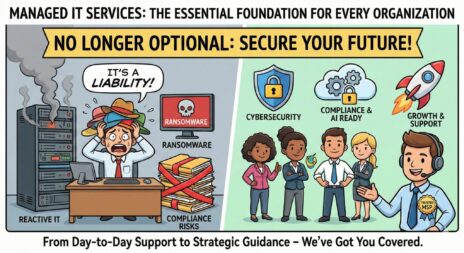
Beyond the Helpdesk: Why Managed IT Services Are Now Non-Negotiable for Small Businesses Running a small business means you wear a dozen different hats on any given day. But “Chief Information Officer” shouldn’t be one of them. For a long time, having an “IT guy” you could call when the server went down, or the […]
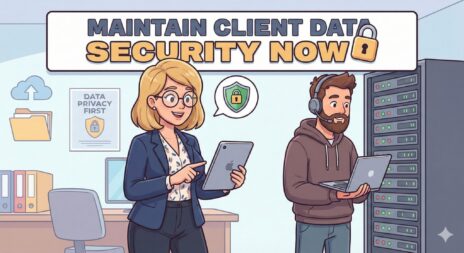
Safeguarding the Core Asset: Strategic Client Confidentiality Through Managed IT Services In the modern professional services landscape, client trust is not merely a byproduct of good service; it is the foundational asset of your enterprise. For boutique firms, specialized clinics, and financial advisories, protecting client confidentiality is a strict legal mandate and the bedrock of […]
How to Create a Business Continuity Plan That Works: A Proven Guide Every organization faces potential disruptions, from natural disasters and cyberattacks to power outages and supply chain failures. Creating a business continuity plan involves documenting procedures and instructions your organization will follow to maintain operations during and after a disruption. Without a plan in […]